Benefits for you as a professional: You can quickly generate scripts for your pitches, meetings and sessions. Personalised scripts enhance client interactions by addressing their specific needs and concerns.
Benefits for your clients: Your clients receive personalised communication addressing their needs, thus enhancing their understanding and engagement. It also keeps discussions on track and focused on key points.
Click on the Profile Settings Button
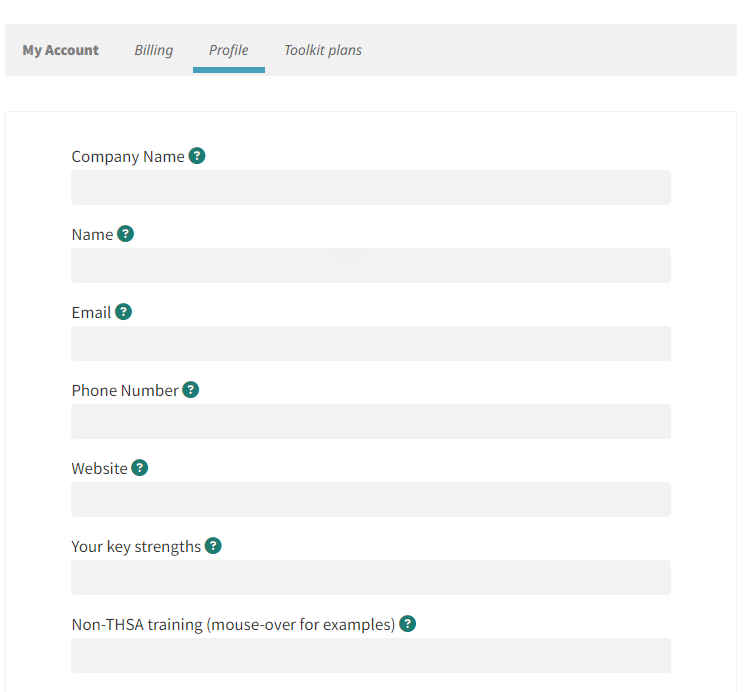
You will be redirected to the My Account, Profile Page
Click on each of the pen icons to edit the information (e.g. Company Name, Name, Email, Phone Number, Website, Your key strengths, Non-THSA training)
Click on the Script Programs button
Click on Create Program
Write your Program name in the Crete Your Program space and click Next
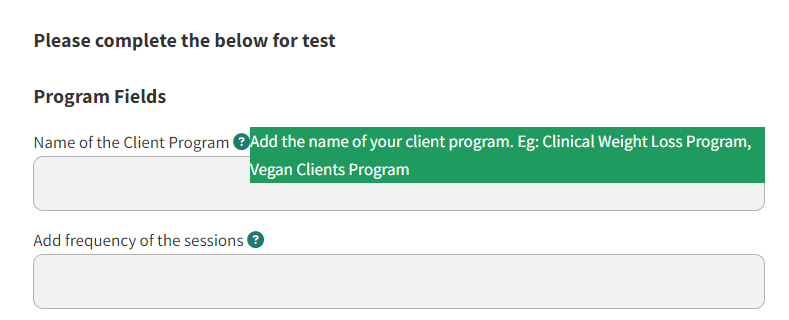
Complete each of the program Fields based on your program
For more information, place your mouse above the ? next to the Field
You can save the information by clicking on the Save button located at the bottom of the page.
Click the Back button to return to the My Script Programs page and you will now see the Program listed on the page
You access the My Script Program page here: https://clinictoolkit.com/my-script-programs/
Once you have created a Script Program, you have the ability to edit it
To do this, go to the My Script Programs page https://clinictoolkit.com/my-script-programs/
Click on the pen and paper icon to the right of the Program name
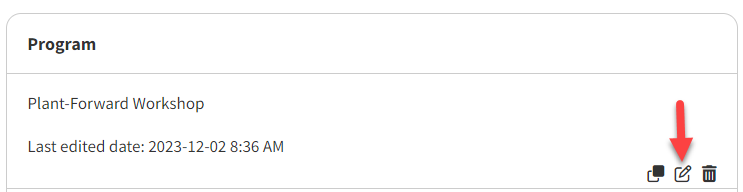
The Program will open, and you can edit it as you like.
Click the Save button at the bottom of the page to save your changes
Rather than creating multiple programs from scratch, you may want to just copy and modify a Script Program that you have already created
To do this, go to the My Script Programs page https://clinictoolkit.com/my-script-programs/
Click on the icon that looks like 2 little squares (one white and one black)
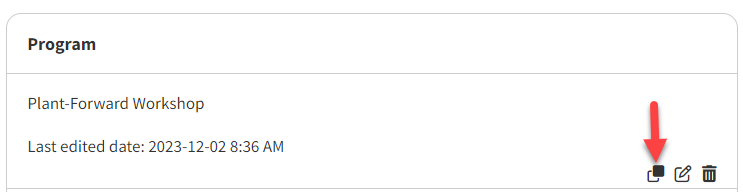
A copy of your Script Program will be created for you
It will have the same name but with “-copy” at the end
Click on the pen and paper icon to edit this Script Program
Go to the My Script Programs page https://clinictoolkit.com/my-script-programs/
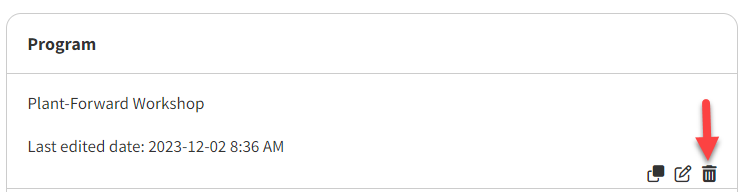
In order to delete a Script Program that you have created, click the trash bin icon to the right of the name
A pop-up will appear asking if you are sure you want to remove the program.
Click Ok to confirm its deletion or Cancel if you decide not to delete it.
Once you have updated your profile and created a script program, you can use the script generator.
First, add your Client’s Name in the space at the top
Then select a Category (e.g. Attraction, Conversion, Onboarding, Wowing clients)
Next, Choose a script below under the Category that you selected
Choose the program which you previously set up (see above for instructions)
You can also click the Edit Program button (which appears once you have selected a Category) if you have not yet created a program or wish to edit a program already created
Your Script Subject line and text will be generated below.
Select the Copy Subject Line and Copy Script buttons to copy and then paste the information generation into an email or document
Review the text and personalise it before you send it to your client
You can find the Script Generator here: https://clinictoolkit.com/script-generator/